HubSpot deduplicates contacts by email address and companies by domain name. Duplicates get through when something creates a record without giving HubSpot an email or a domain to match on, or goes around the check entirely. Common sources are imports without an email column, companies created through the API or a sync app, people with two email addresses, and records typed in by hand. Find which one is creating yours, fix that first, then merge. Merges can't be undone, so export before you start.
How HubSpot decides two records are the same
- Contacts are matched on the Email property. If a form or an import brings in an email that already exists, HubSpot updates the existing contact instead of creating a new one. If you try to create one by hand with an existing email, HubSpot stops you.
- Companies are matched on the Company domain name property, using the primary domain (and secondary domains on import).
- Everything else can be matched on Record ID during an import, or on a custom property you've set to require unique values.
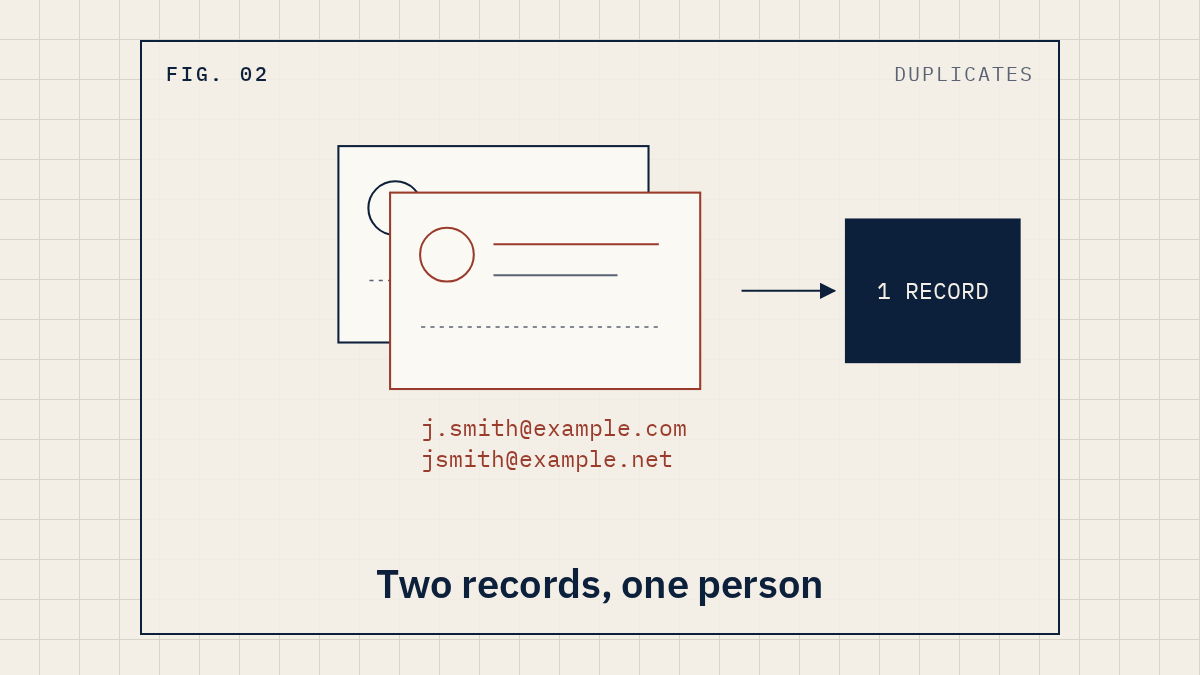
So the check is exact: a different email, even for the same person, is a different contact.
Why does HubSpot create duplicates?
The first two come straight from HubSpot's deduplication page. The other two follow from how the check works:
- Imports without an Email column. HubSpot says that if your import doesn't include the Email property or another unique identifier, each row is imported as a new contact. Same for companies without a domain or a unique ID column.
- Companies created through the API. HubSpot states that companies created through the API aren't deduplicated by domain, and that this includes installed third-party sync apps. If an integration or an automation tool like Zapier or Make creates companies in HubSpot, have it look for an existing company first.
- One person, two addresses. A work email and a personal email, or an old address and a new one after a job change. There's nothing for the check to match.
- Companies with no domain. A sales rep adds "Acme" by hand with no website. Later a form submission that includes acme.com as the company domain creates a second company.
There's also the reverse problem, which looks like a duplicate issue but isn't. When a form's Automatically create new contacts from unknown email addresses setting is off and HubSpot can't match the email, it can fall back to the browser cookie. HubSpot's forms page warns this "may result in contacts being overwritten if the same form is submitted multiple times from the same device." Think of a shared front-desk computer or someone filling out a form for a colleague. Two people end up in one record instead of two.
Find the source before you merge
If you merge first, you'll be merging again next month. If you've just taken over the portal, start with where to start with a messy HubSpot portal.
- Pick a handful of duplicate pairs.
- Open each record and, in the upper right of the left sidebar, click Actions, then View property history. The Source column shows what made each change, such as a user edit, an import or a workflow.
- Compare the create dates of each pair. If the second copy of several people was created on the same day, look for an import on that date.
You're looking for a pattern, not a perfect count.
Stop it at the source
Imports. Always include an Email column for contacts, a Company domain name column for companies, or the Record ID if you're updating records you exported. HubSpot's help page describes a simple method for messy files: export your records with their Record IDs, use VLOOKUP to match them against the new file, then split the new file into two imports, one with Record IDs for existing records and one for new records.
Integrations and automation tools. Open every zap, scenario or sync that creates contacts or companies. Each one should search for an existing record before it creates a new one. If it can't, have it create only when the search finds nothing. If you have a stable ID from another system, such as a customer number from your accounting software, store it in a custom property that requires unique values. HubSpot allows up to ten of those per object. They aren't supported in forms, though, so they're for imports and manual edits.
Forms. In the form editor, the settings icon opens a Settings tab with Automatically create new contacts from unknown email addresses. With it on, a new email creates a new contact instead of falling back to the cookie. The trade-off is that HubSpot turns off pre-populated fields and the reset link for that form. If you see people overwriting each other, it's worth it.
Hand-entered records. Ask your team to fill in the domain whenever they create a company.
Then merge, carefully
With a Professional or Enterprise subscription, the duplicates manager does the finding for you. Go to CRM, then Contacts (or Companies), click the three vertical dots icon in the upper right, and select Manage duplicates. HubSpot compares records on fields like name, email, phone and company name, and shows you pairs to review.
For each pair:
- Click Review.
- Use Set properties to review to show the fields you care about, such as owner, lifecycle stage and lead source.
- Pick the record to keep and the values to keep from each one.
- Click Merge and review next, or Reject and review next if they're really two people.
Bulk merging and custom duplicate rules need a Data Hub Professional or Enterprise subscription. If you reject a pair by mistake, View history lets you undo it within 14 days, as long as neither record has been changed in the meantime. A merge has no undo.
Before you merge a lot of records, know what a merge does. According to HubSpot's merge page:
- The primary record's property values win. Empty fields on the primary get filled from the secondary.
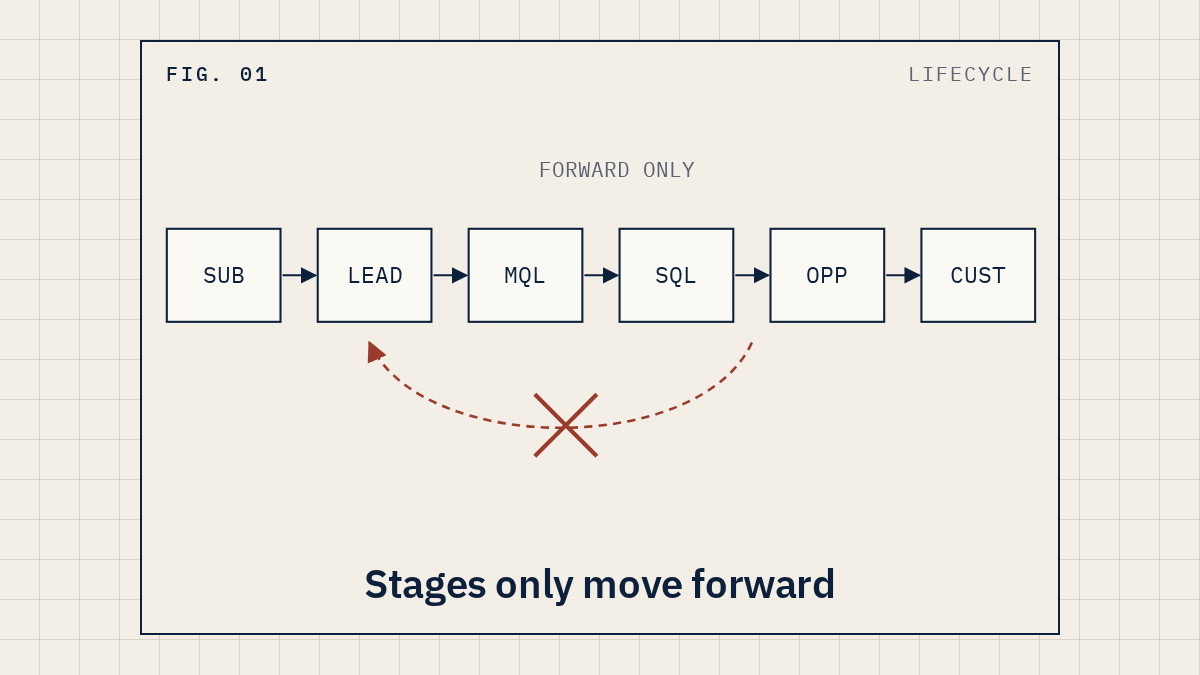
- The lifecycle stage furthest down the funnel is kept. A Lead merged with a Customer becomes a Customer. More in why lifecycle stages get stuck.
- The secondary email becomes a secondary email on the merged contact.
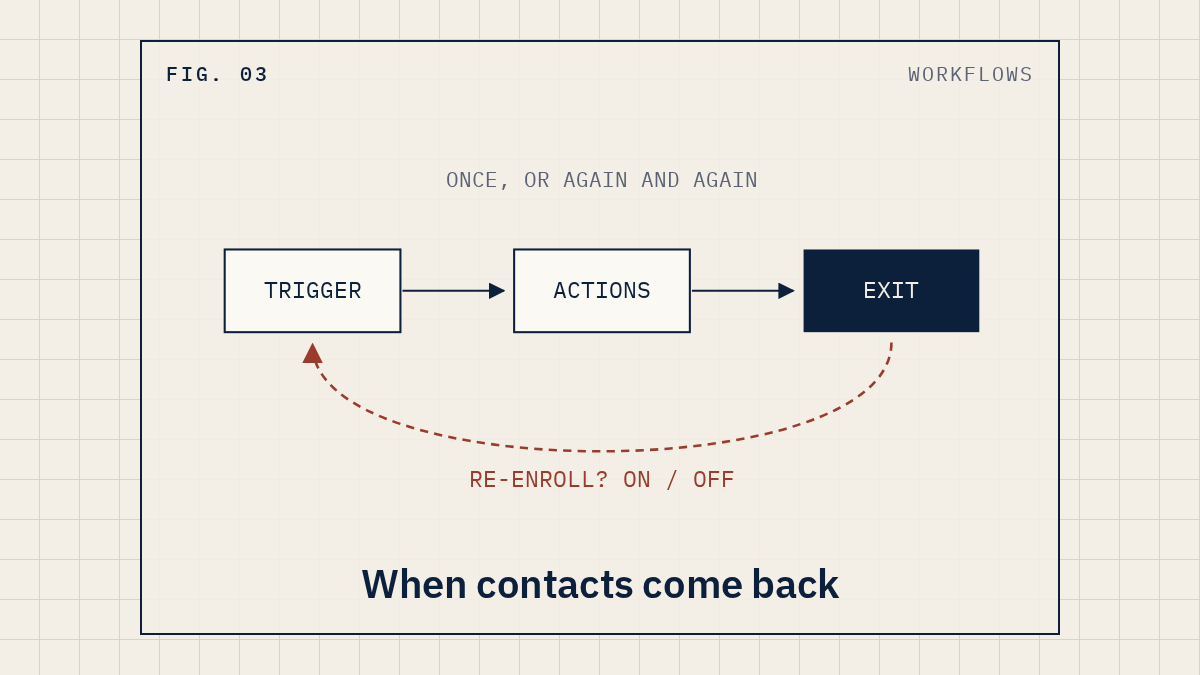
- Unless your account is in HubSpot's beta for preserving merged record IDs, both records are unenrolled from their active workflows at the moment of the merge. More on that in how workflow re-enrollment works.
So contacts merged in the middle of a nurture stop getting it.
Pairs to leave alone
Not everything that looks like a duplicate is one.
- Two people with the same name at different companies.
- A parent company and a subsidiary with different domains. Use an association, not a merge.
We'd rather leave a questionable pair alone than merge the wrong two people. If you're not sure, reject the pair. You can undo a reject. You can't undo a merge.
FAQ
Can I unmerge two contacts?
No. HubSpot's merge page says it isn't possible. You can create a new contact with the old email address, and the Merged Record IDs property shows which records were combined.
Does HubSpot check for duplicates on import?
Yes, if the file has a column it can match on: Email for contacts, Company domain name for companies, or Record ID. Without one, HubSpot imports each row as a new record.
Why are there duplicate companies with the same domain?
HubSpot doesn't deduplicate companies created through its API, and that includes installed sync apps. An import that matches on a custom unique property instead of the domain can also bring in companies with domains you already have.
Can Zapier create duplicate contacts in HubSpot?
It can, in the same ways anything else can: a contact created with no email, or with a second address for someone you already have. If a zap creates companies, set it to look for an existing company first.
What if I'm on a Free or Starter plan?
You can still merge records one at a time from the record itself (Actions, then Merge), and everything in the "stop it at the source" section still applies. The duplicates manager needs Professional or Enterprise.
Duplicates are often a symptom of how data gets into the CRM: forms, imports, integrations and people. Our Revenue Stack Audit traces how records get into your CRM and ranks what to fix. Want a second set of eyes on your setup? See how the audit works.
Sources (HubSpot Knowledge Base): Deduplicate records in HubSpot, Create and customize forms, View a record's property history, Review and manage duplicate records, Merge records, Understand and use the record page layout.
Independent. Not affiliated with HubSpot. HubSpot is a trademark of HubSpot, Inc. Zapier and Make are trademarks of their respective owners.